Photo scrapbook for iPhone
Scraps
Keep the good parts.
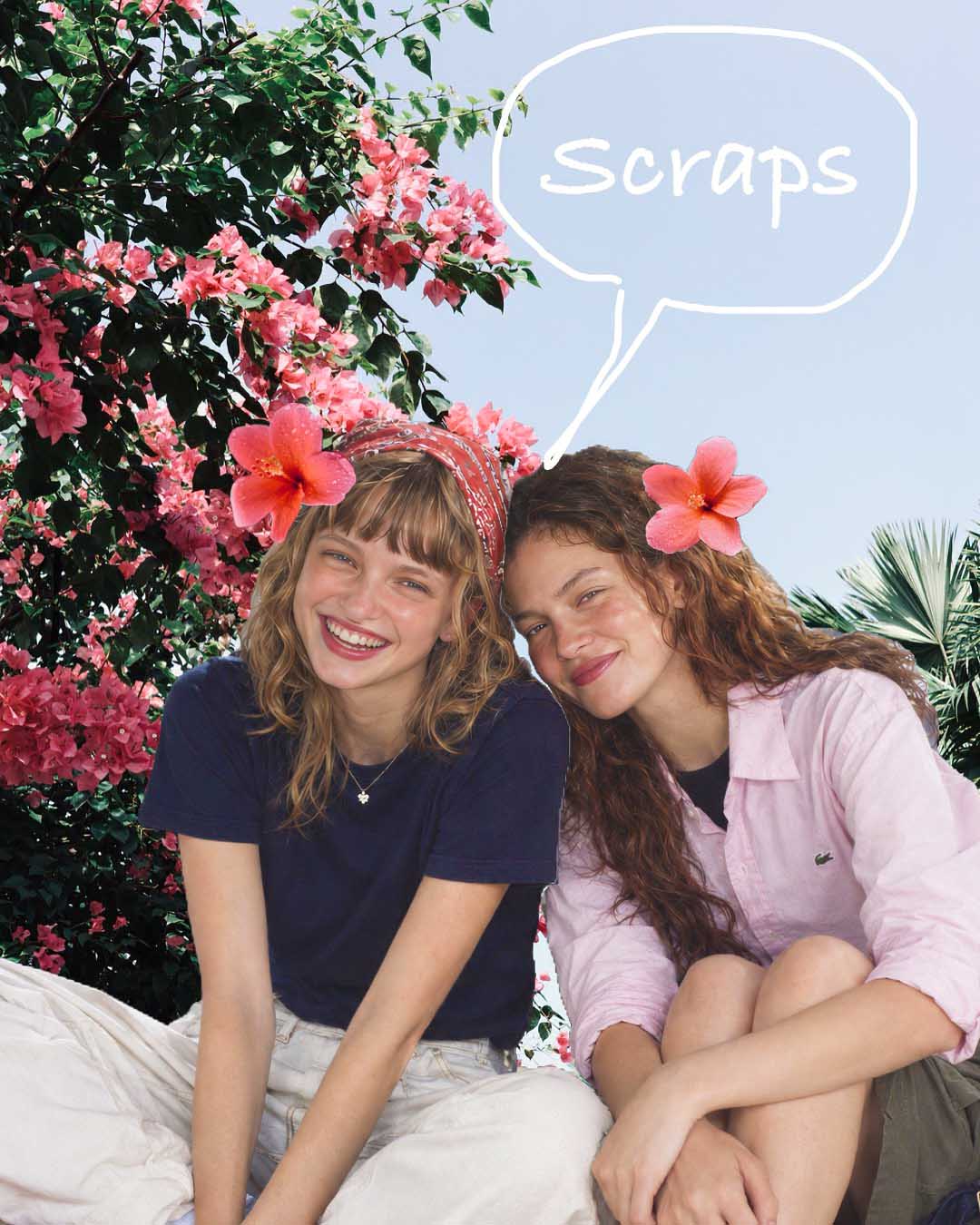
Photo dump, but make it a scrapbook.
Trace what you love—it pops right out. Put it anywhere.
 Available now in the U.S.
 Available now in the U.S.
Watch
One page, start to finish.
A real page made on a real iPhone—trace, fix, arrange, done. Filmed from above, nothing staged.
Filmed, not staged. No sound.
How it works
This is the whole process.
The Bangkok page in eight steps. Every screen below is the real app.
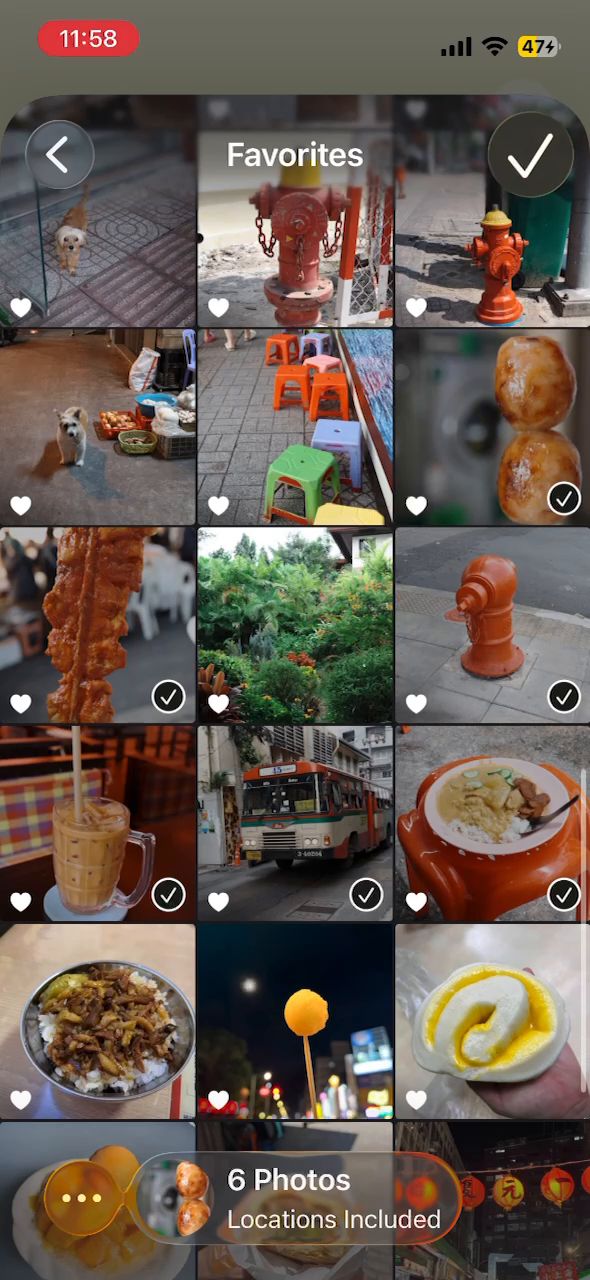
Pick photos
Choose 1–20 photos at once—six here. Skip any you change your mind about.
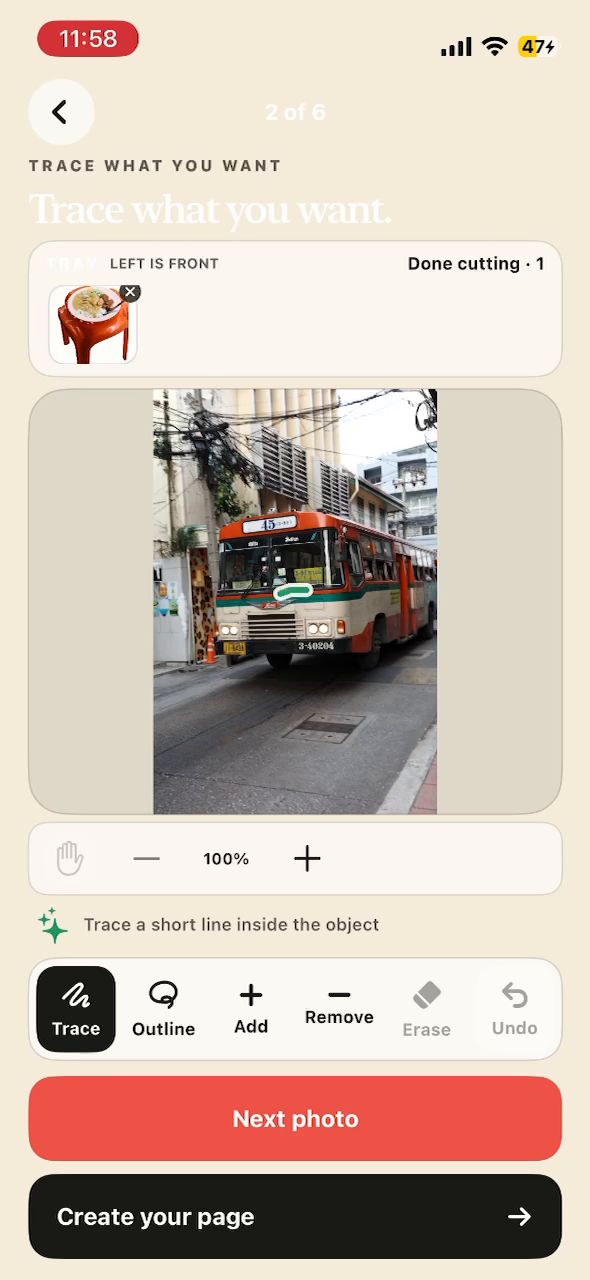
Trace what you want
Draw one short line inside the object. Trace finds it—here, the bus.
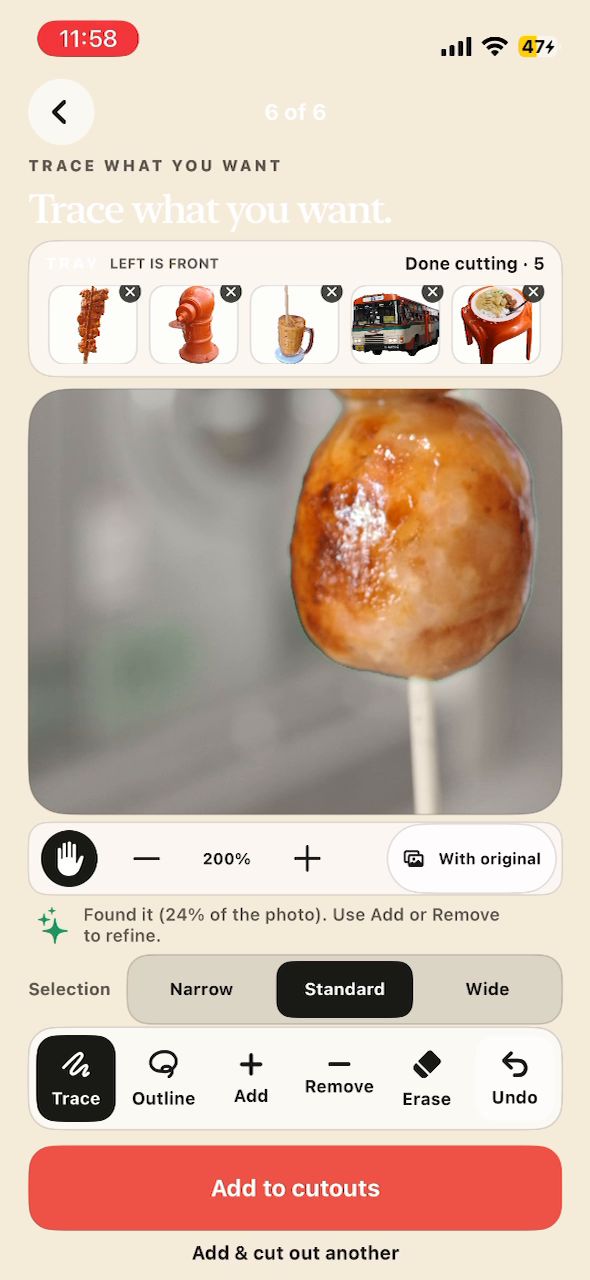
Fix only what needs it
Zoom in. Narrow / Standard / Wide tightens the pick; Add, Remove, Erase handle the rest.
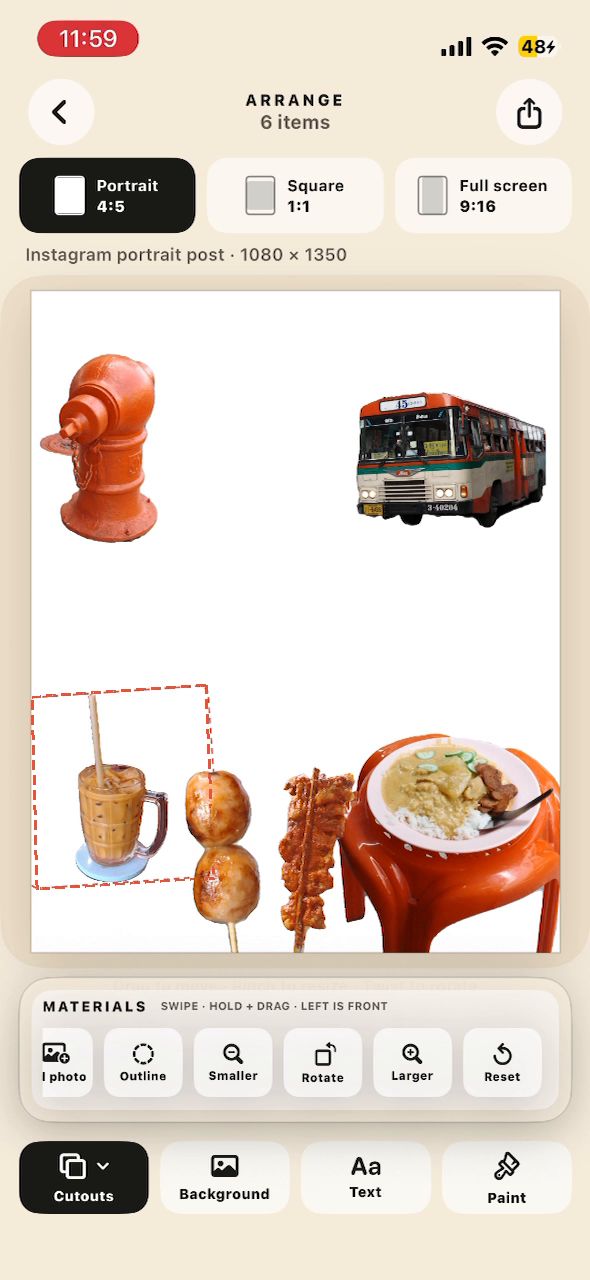
Arrange on paper
Tap a piece—the dashed box shows what you’re moving. Drag, pinch, twist. The tray sets what’s in front.
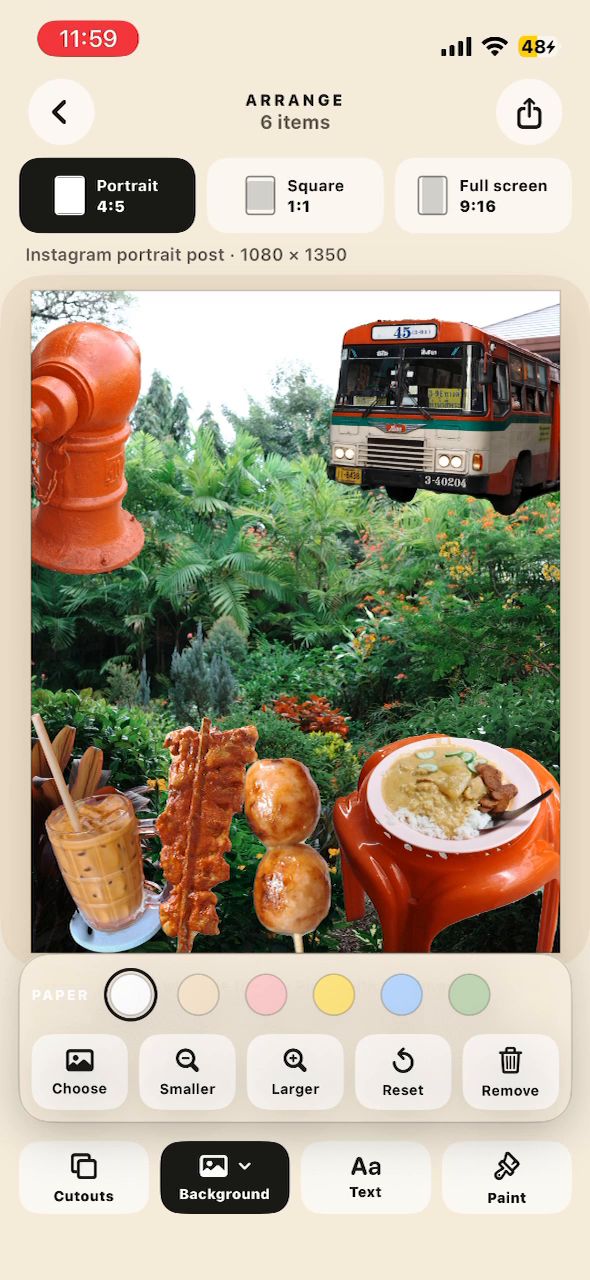
Add a background
Six paper colors, or a photo you can move and resize behind everything.
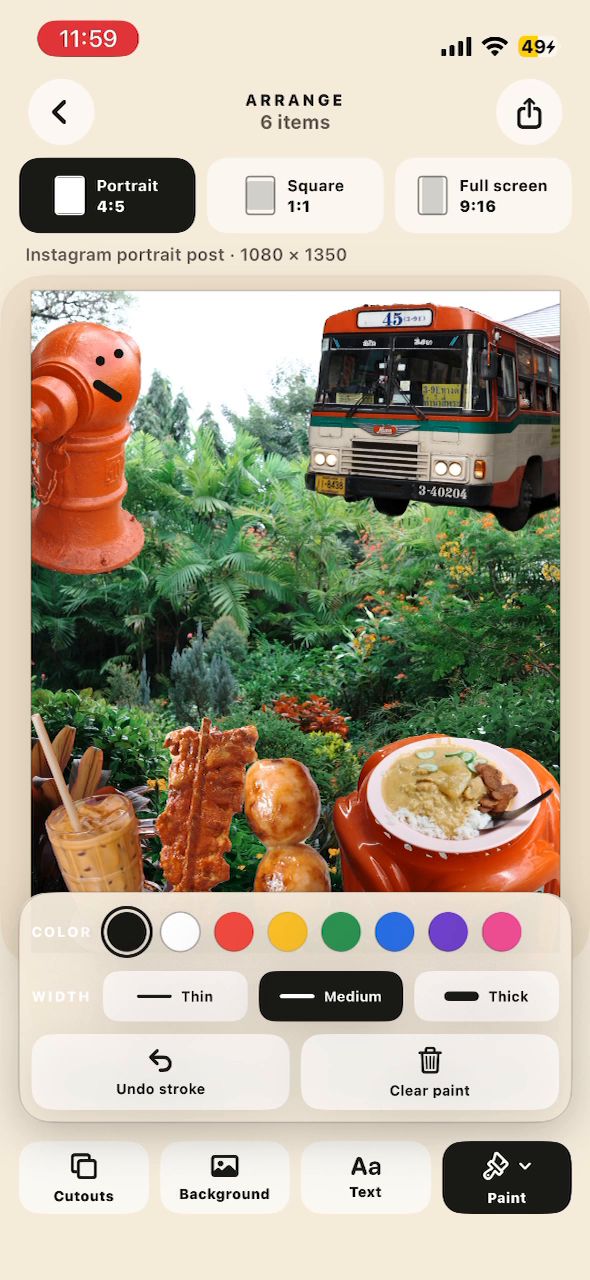
Draw on it
Eight colors, three brush sizes. The hydrant is getting a smile.
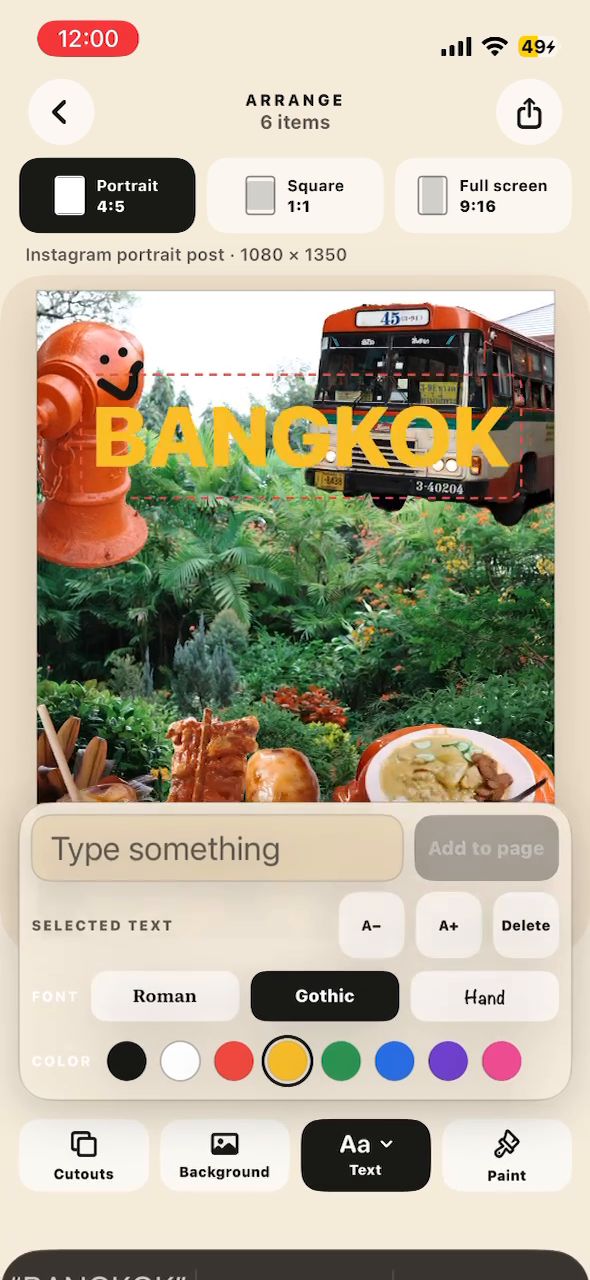
Write on it
Five fonts, from Roman to a flowing script. Resize, rotate, and color the words like any other piece.
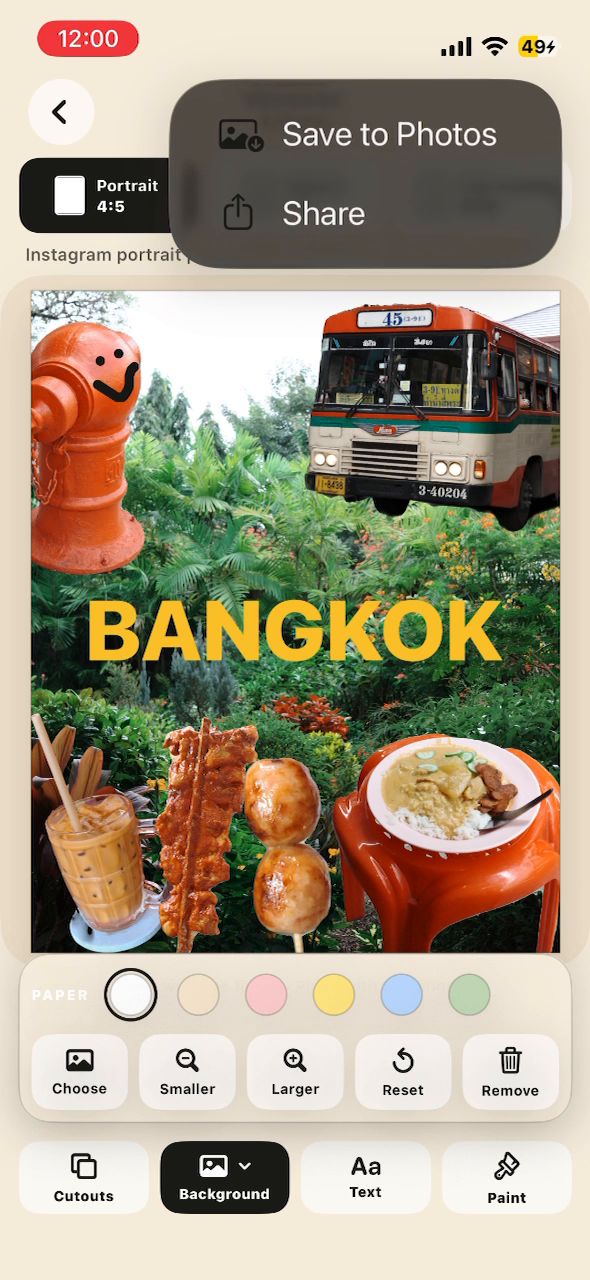
Save or share
4:5, 1:1, or 9:16. Save to Photos or open the iOS share sheet.
Every tool
Everything in the app, on one screen.
Short on purpose. This is the whole manual.
Select6
- Pick
- 1–20 photos from your camera roll
- Continuous
- Cut one photo, move to the next—no going back to the picker
- Skip
- Pass on any photo
- Multiple
- Several cutouts from one photo
- Combine
- Join separate parts of one photo into a single piece
- Tray
- Every cutout collects in the material tray
Cut & refine9
- Trace
- One short line inside the object. The app finds the rest.
- Outline
- Draw a loop to keep the area inside. If a cutout is already selected, the loop removes what falls outside.
- Add
- Trace another part to include it
- Remove
- Trace a part to take it out
- Erase
- Wipe leftovers by hand · thin, medium, thick
- Narrow / Standard / Wide
- Tighten or loosen the selection edge
- Undo
- Step back one action
- Original / Cutout
- Toggle the photo under the selection
- Zoom & pan
- 100–400% while you refine
Compose7
- Canvas
- 4:5 · 1:1 · 9:16
- Move · Resize · Rotate
- Drag, pinch, twist—or tap the buttons. Reset anytime.
- Layers
- Hold and drag in the tray. Left is front.
- Mix
- Cutouts and full rectangular photos on the same page
- Background
- Six paper colors (white included), or a photo
- Photo background
- Move and resize it behind everything
- White outline
- Optional sticker edge, per cutout
Write & draw7
- Fonts
- Roman · Gothic · Hand · Script (flowing cursive) · Casual (loose handwriting)
- Text
- Resize, move, rotate, delete
- Text colors
- 8
- Paint
- Draw directly on the page
- Paint colors
- 8
- Brush
- Thin · Medium · Thick
- Undo stroke · Clear
- Take back one line, or all of them
Finish6
- Autosave
- Drafts save on your iPhone as you work
- Resume
- Pick up the latest draft from Home
- Save
- High-resolution PNG to Photos
- Share
- iOS share sheet
- Guides
- Four one-time tips, shown where you need them
- Restore
- Restore Purchases on a new iPhone
Made with Scraps
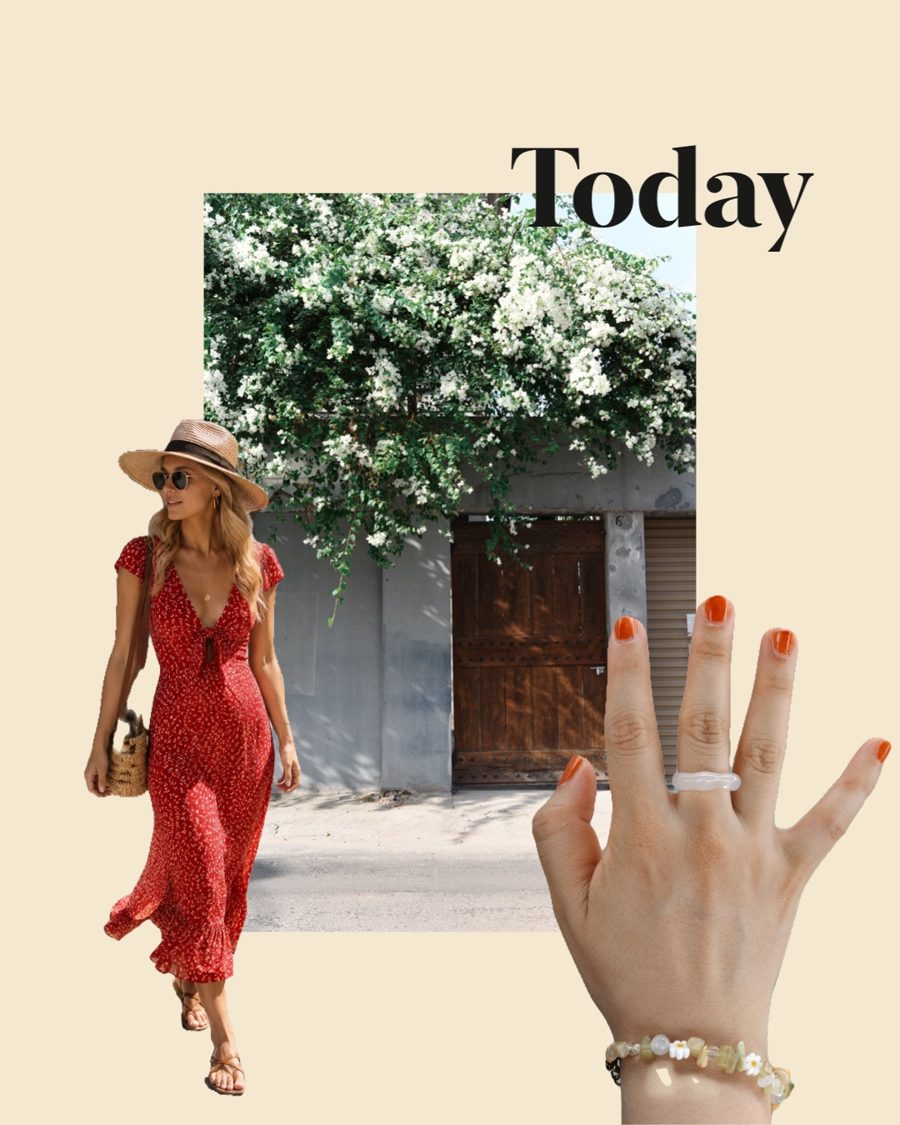
Different weeks should look different.
A trip, a birthday, a Tuesday. Same app, no template.


Create on iPhone
Your camera roll already has the ingredients.
Subject isolation runs locally on iPhone. No Scraps account is required.
Available now in the U.S.One-time purchase. No subscription. Available now in the U.S.